SAFARI EXTENSION / VERSION 1.0.0
Never miss a game with the Big Ticket.
Get in line with up to 100 tabs at once and watch every one move. Big Ticket Queuer shows you which tab is closest to the front.
Private Browsing only.
Only works in Safari incognito (Private Browsing) windows on Mac.
GET SET UP
Add it to Safari.
You’ll need a Mac and a Safari version with Add Temporary Extension in its Developer settings.
This is a temporary extension. Safari removes it after 24 hours or when you quit Safari; repeat these steps when needed.
Download and unzip
Download the ZIP above, then double-click it in Finder. You’ll get a Big Ticket Queuer folder with a short READ ME and the Big Ticket Queuer Extension folder.
Show Safari’s developer settings
Open Safari → Settings → Advanced and turn on Show features for web developers.
Add the extension folder
In Settings → Developer, choose Add Temporary Extension…. Complete Safari’s unsigned-extension prompt and select the Big Ticket Queuer Extension folder.
Enable Private Browsing access
Under Settings → Extensions, enable Big Ticket Queuer and select Allow in Private Browsing. Allow access to your queue site and the activation service when Safari asks.
READY WHEN YOU ARE
Start your session.
Use a Safari Private Browsing window for every monitoring session.
- 01 / OPEN
Go private. Activate.
Choose File → New Private Window (⇧⌘N). Click the extension’s toolbar icon and enter your supplied activation code. First activation needs an internet connection.
- 02 / SET UP
Choose your tabs.
Paste your queue link (see below), choose 1–100 tabs, and set the seconds per tab. Use 0 for the fastest setting, then select Open and Monitor.
- 03 / MONITOR
Follow the progress.
Keep the monitor and queue window visible, and keep your Mac awake. The monitor reads progress from each tab so you can see how your tabs are doing.
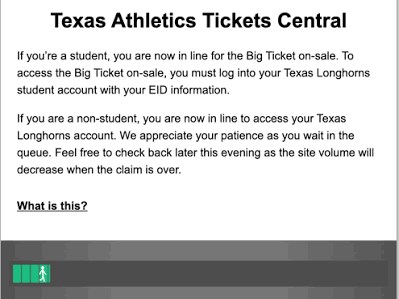
Insert the link from the queue website.
Once you’re in line, the ticket site shows a waiting-room page like this one. Click Safari’s address bar, copy the full link (⌘C), and paste it (⌘V) into the extension’s Queue URL box.
Use the link from this waiting-room page, not the ticket site’s home page.
A few controls to know
Open selects a tab and pauses cycling. Pause / Resume lets you take a break and continue. Stop ends monitoring and leaves your tabs open.
QUICK HELP
A small heads-up.
The extension disappeared after closing Safari.
Temporary extensions are removed when Safari quits or after 24 hours. Add the extracted folder again from Safari’s Developer settings and re-enable Private Browsing access.
I don’t see “Add Temporary Extension”.
Make sure developer features are enabled in Safari’s Advanced settings. If the option is still missing, update to a Safari version that supports temporary extensions on Mac.
How do I pay?
Payments are handled through a secure link, sent to you once you’ve downloaded the extension. There’s no payment on this website, and you’ll never be asked to enter card details here. After payment you’ll receive your activation code.
My activation code isn’t working.
Check your internet connection and the code you were given. If you already activated, use Check activation. A code is tied to one installation; contact the person who supplied it if it is invalid, already used, or revoked.